
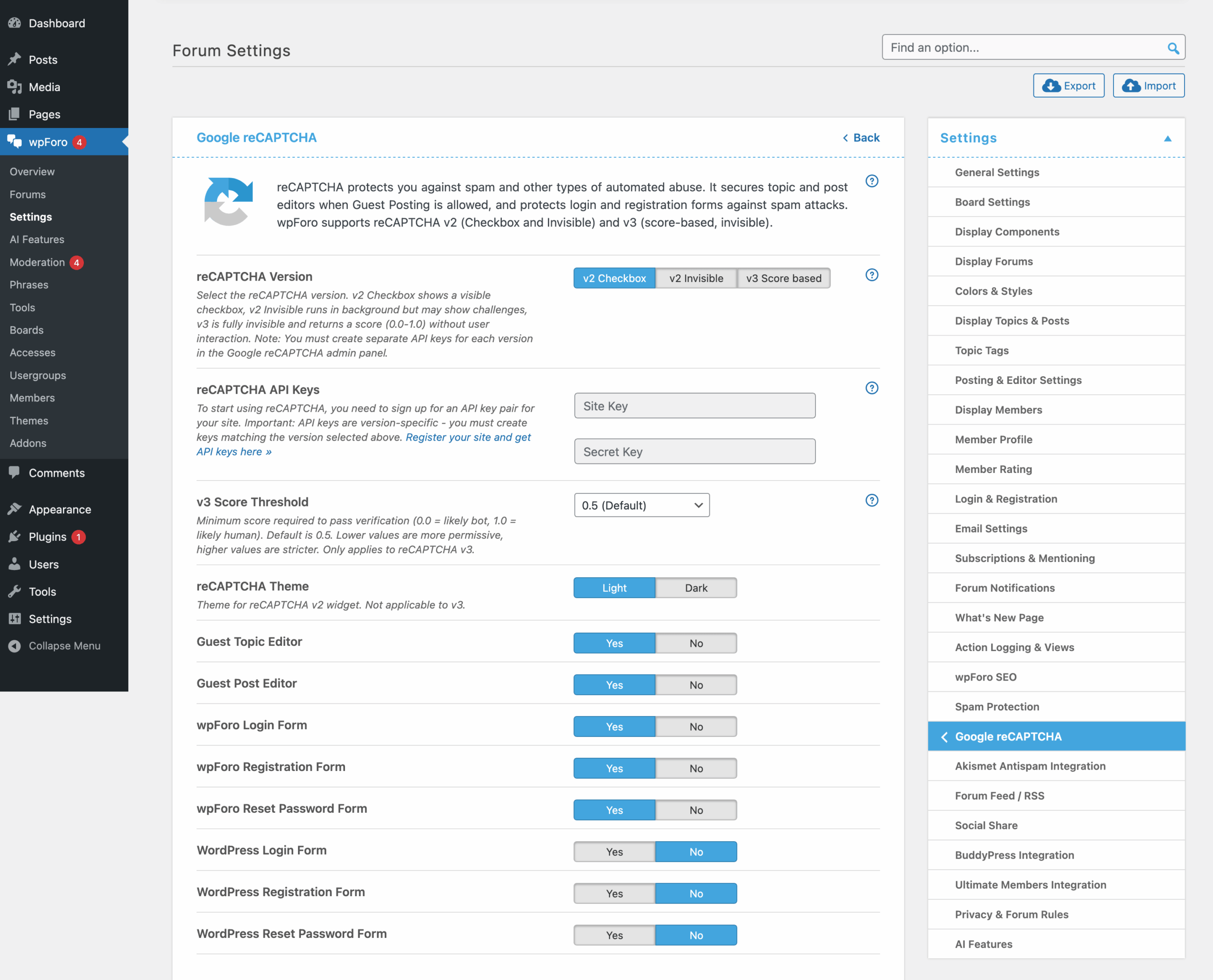
reCAPTCHA protects you against spam and other types of automated abuse. It makes secure topic and post editors when Guest Posting is allowed, also it protects login and registration forms against spam attacks. wpForo comes with a built-in reCAPTCHA supporting version 2 and 3 (wpForo 2.x only supports the v2).
If you use a multi-board system (you have multiple forum pages), you’ll find the Google reCAPTCHA settings in the top wpForo menu section:
- Single Board Forum: Dashboard > wpForo > Settings > Google reCAPTCHA
- Multi-boards Forum: Dashboard > wpForo > Settings > Google reCAPTCHA
How to Get Google reCAPTCHA API Keys
Step 1: Go to Google reCAPTCHA Admin Console
- Visit: https://www.google.com/recaptcha/admin/create
- Sign in with your Google account
Step 2: Register a New Site
- Label: Enter a name to identify this site (e.g., “My Forum”)
- reCAPTCHA type: Choose one:
- reCAPTCHA v2 → “I’m not a robot” Checkbox: Users click a checkbox
- reCAPTCHA v2 → Invisible reCAPTCHA badge: No user interaction, badge shown
- reCAPTCHA v3: Score-based, completely invisible, no user interaction
- Domains: Add your website domain(s) without
http://orhttps://(e.g.,example.com) - Accept the Terms of Service
- Click Submit
Step 3: Copy Your Keys
- Site Key: Public key used in your website’s HTML (safe to expose)
- Secret Key: Private key used for server-side verification (keep confidential)
Important: The keys are version-specific. If you choose v3 in wpForo, you must register for v3 in Google. Same for v2 Checkbox or v2 Invisible.
wpForo reCAPTCHA Settings
Version
- v2_checkbox: Displays “I’m not a robot” checkbox. Users must click it.
- v2_invisible: Shows a small badge. Verification happens automatically on form submit.
- v3: Completely invisible. Returns a score (0.0-1.0) based on user behavior. No user interaction.
Site Key
- Your public reCAPTCHA site key from Google Admin Console
- Displayed in the frontend HTML
Secret Key
- Your private reCAPTCHA secret key from Google Admin Console
- Used for server-side verification
- Never expose this publicly
v3 Score Threshold (v3 only)
- Range: 0.1 to 0.9
- Default: 0.5
- Scores below this threshold are considered bots
- Lower value = more permissive (lets more through)
- Higher value = stricter (blocks more users)
- Recommendation: Start at 0.5, adjust based on spam levels
Theme
- light: White/light background (default)
- dark: Dark background for dark-themed sites
Form Protection Options
wpForo Forum Forms (for Guests)
- Topic Editor: Protect new topic creation form
- Post Editor: Protect reply/post creation form
wpForo Account Forms
- wpForo Login Form: Protect wpForo’s custom login form
- wpForo Registration Form: Protect wpForo’s user registration form
- wpForo Lost Password Form: Protect wpForo’s password reset form
WordPress Default Forms
- WordPress Login Form: Protect
/wp-login.phplogin - WordPress Registration Form: Protect
/wp-login.php?action=register - WordPress Lost Password Form: Protect
/wp-login.php?action=lostpassword
reCAPTCHA Version Comparison
v2 Checkbox
- Pros: Clear user feedback, high security
- Cons: Requires user interaction, may slow down form submission
- Best for: Sites with high spam, less tech-savvy users
v2 Invisible
- Pros: No checkbox click, cleaner UX
- Cons: Badge visible on page, may challenge suspicious users
- Best for: Balance between security and UX
v3 (Recommended)
- Pros: Completely invisible, no user friction, score-based
- Cons: May require threshold tuning, no user challenge
- Best for: High-traffic sites, optimal user experience
Recommended Configuration
- Version: v3 (best user experience)
- v3 Score Threshold: 0.5 (start here, adjust if needed)
- Theme: Match your forum theme
- Enable for:
- Registration Form (most important – prevents fake accounts)
- Topic Editor for Guests
- Post Editor for Guests
- Lost Password Form (prevents enumeration attacks)