
AI Logs
AI Logs provide a comprehensive record of all AI operations in your forum. Monitor usage, troubleshoot issues, and understand how AI features are being used.
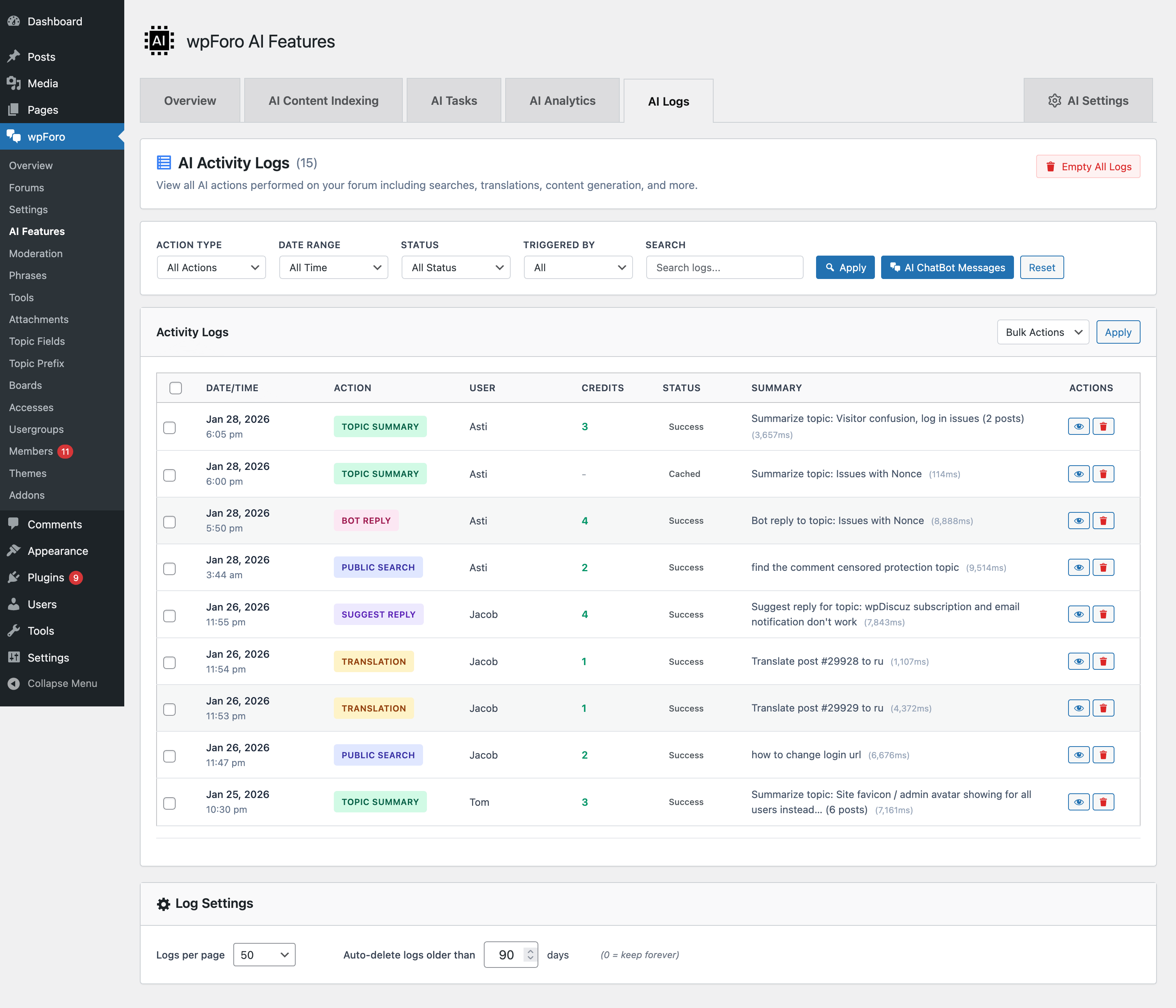
Accessing AI Logs
Go to Dashboard > wpForo > AI Features > AI Logs tab.
Log Information
Each log entry includes:
- Date/Time – When the action occurred
- Action Type – Search, Translation, Moderation, etc.
- User – Who triggered the action
- Credits Used – Cost of the operation
- Status – Success, Error, or Cached
- Summary – Brief description of the action
- Duration – Processing time in milliseconds
Filtering Logs
Filter logs by:
- Action Type – Specific AI feature
- Date Range – Time period
- Status – Success, Error, Cached
- User Type – User, Guest, Cron, System
- Search – Free text search
Log Actions
- View Details – See full log entry with request/response
- Delete – Remove individual log entries
- Bulk Delete – Remove multiple entries
- Empty All – Clear all logs
ChatBot Messages
Click “AI ChatBot Messages” to view all ChatBot conversations:
- See user questions
- Review AI responses
- Analyze common topics
- Identify content gaps
Log Settings
- Logs per page – Number of entries to display
- Auto-delete older than – Automatic cleanup (0 = keep forever)
Best Practices
- Review regularly – Monitor for errors and unusual patterns
- Set auto-cleanup – 90 days is usually sufficient
- Check error logs – Identify and fix issues
- Analyze usage – Understand which features are most used