
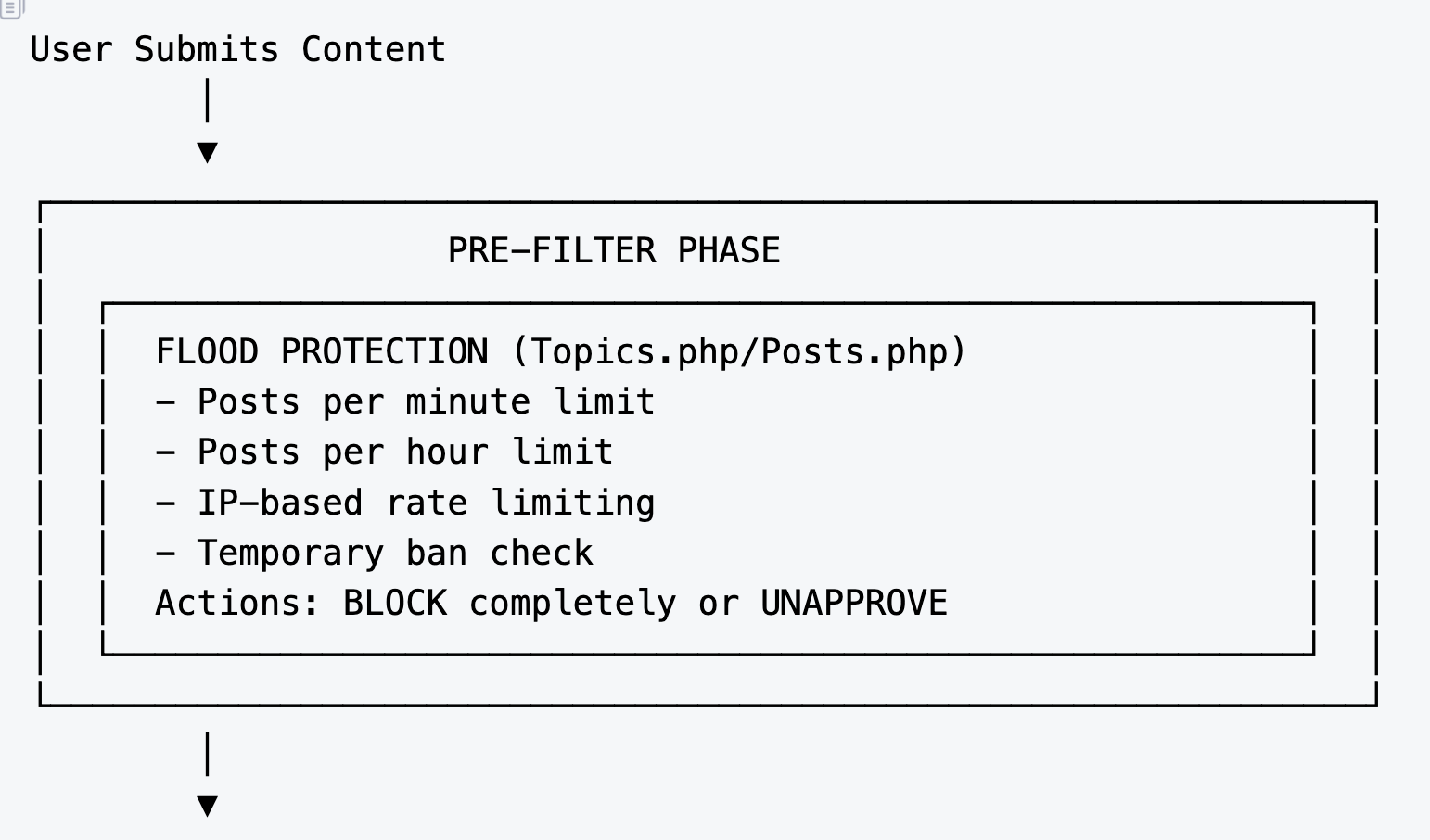
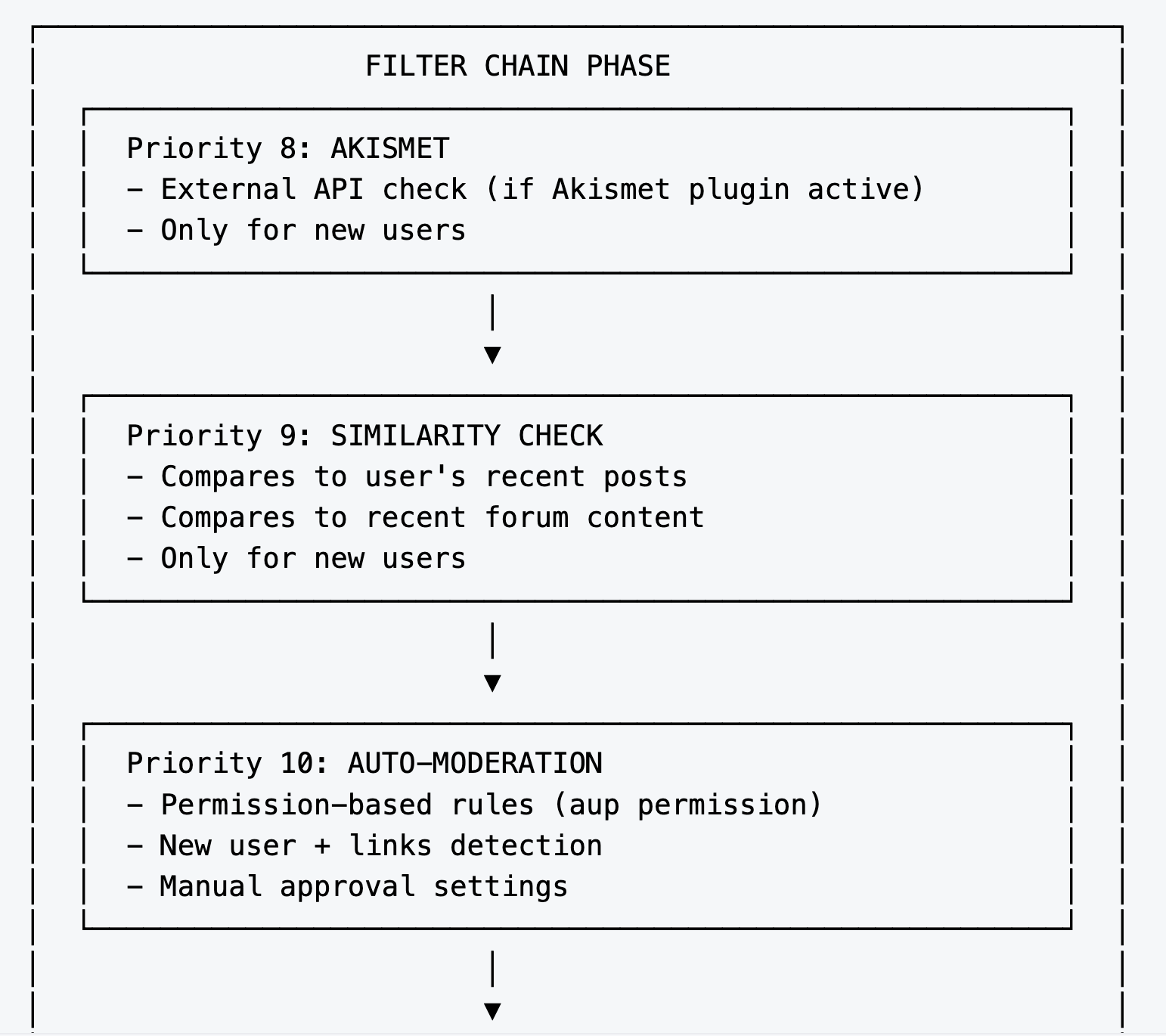
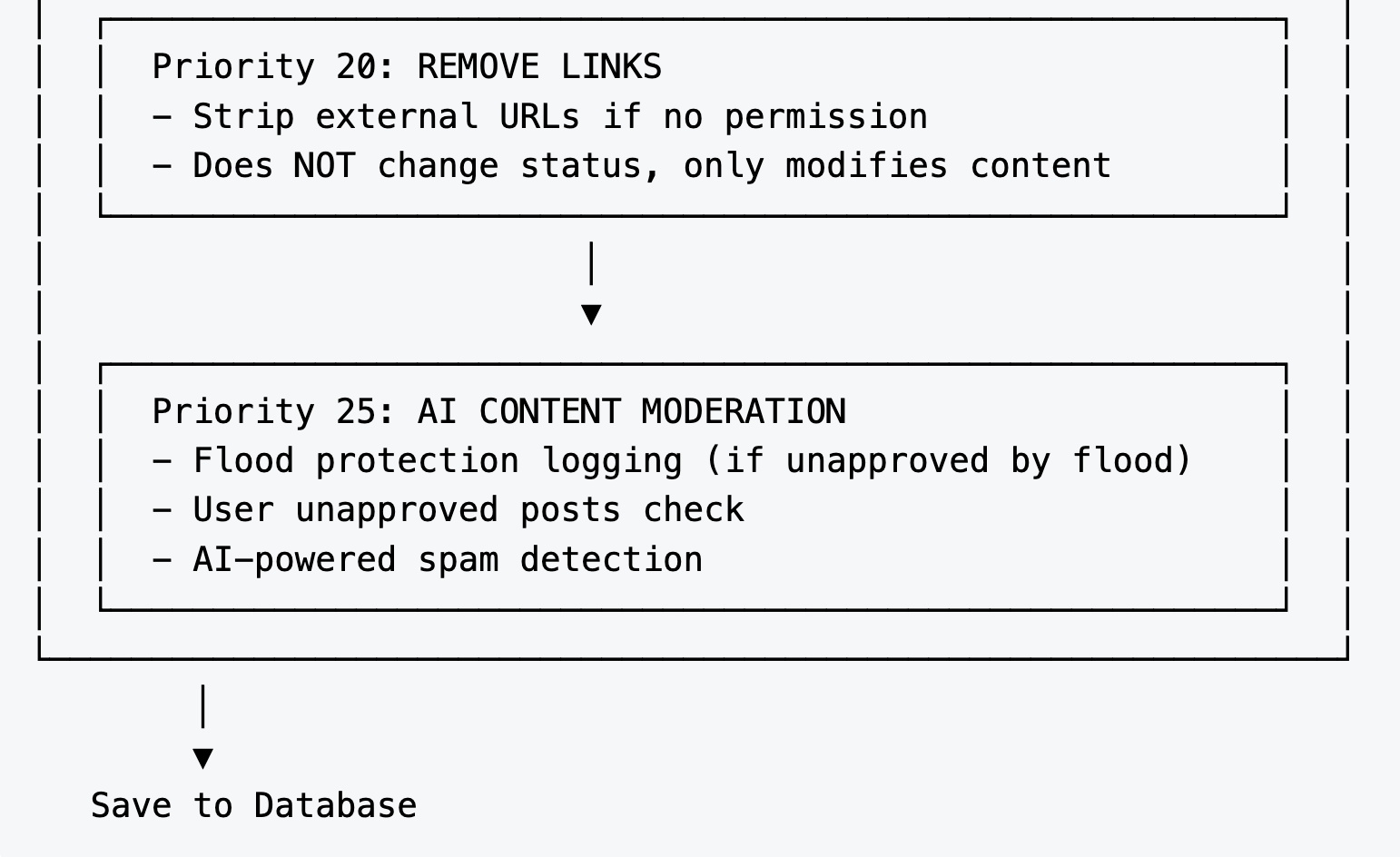
wpForo uses a multi-phase architecture for spam detection:
- Pre-Filter Phase: Flood protection runs BEFORE any filters (in Topics.php/Posts.php)
- Filter Chain Phase: Multiple filters run in sequence, each with a specific priority
Content passes through each phase, and any check can set the content status to “unapproved” or block submission entirely.
Here you can find many ways to protect your forum from spammers. Most of them are already configured and enabled with default values. You can make spam protection more powerfully if you configure Google reCAPTCHA in Settings > Google reCAPTCHA section and install others spam protection plugins like Akismet.
- Single Board Forum: Dashboard > wpForo > Settings > Spam Protection
- Multi-boards Forum: Dashboard > wpForo > Settings > Spam Protection

wpForo Spam Control
This is a core spam detecting function which works based on the level of spam suspicion. We recommend keep this option enabled and set the suspicion level from 20 to 60. This system checks all posts of spammers, then compare them, and then it tries to understand whether they are spam or not. If you enable “Ban user when spam is suspected” option, then you should periodically check the users’ status and make sure the banned user is a spammer, because there is no way to automatically detect spammers with 100% correct result.
User is New (under hard spam control) during first [X] posts
This is the main entry point of spam protection functions. The spam scanner mostly works on users who have “new” status. The “new” status is based on number of approved posts, and it can be set here. By default, it’s set 3 so the user who has 3 or fewer posts will be under hard spam scanning process and most of the posts will be unapproved and will await administrator approval.
Posts must be manually approved
If this option is enabled the spam protection system will not check and try to find spam content, it’ll always set all posts of “new” users as unapproved. The “new” user is the user who doesn’t have the minimal number of approved posts. The minimal number is set in the previous option “User is New (under hard spam control) during first [X] posts”.
Min number of posts to be able to edit profile information
In most cases spammers register and do their spam in the profile page, they create spam profile pages with lots of links and spam content. They use “About”, “Website” and “Signature” profile fields. This option will stop users editing their profile information unless they have more than the minimum number of approved posts. Thus, you can prevent creating of spam profile pages.
Min number of posts to be able to attach a file or post links
These are good additions to the spam protection functions. You can set minimum number of approved posts users must have to see the file attachment button or leave a link in post content. All links will be deleted permanently and users will see [deleted link] in the post if this option value is set more than 0. This behavior will be stopped automatically once the user got the minimum number of approved posts.
Do not allow attaching files with following extensions
This option set the file extensions which are not allowed to attach by the “new” users. This option is not related for other users, it works only for the “new” users. The “new” status of a user is set by the minimum number of approved posts in the corresponding option above. By default these file formats are not allowed to new users because they may contain spam texts and links, the file extensions are separated by “|” (vertical bar ) :
pdf|doc|docx|txt|htm|html|rtf|xml|xls|xlsx|zip|rar|tar|gz|bzip|7z
Flood Protection
Prevent spam floods by limiting how many posts users can create within specific time windows. This helps detect and stop automated spam attacks and excessive posting.
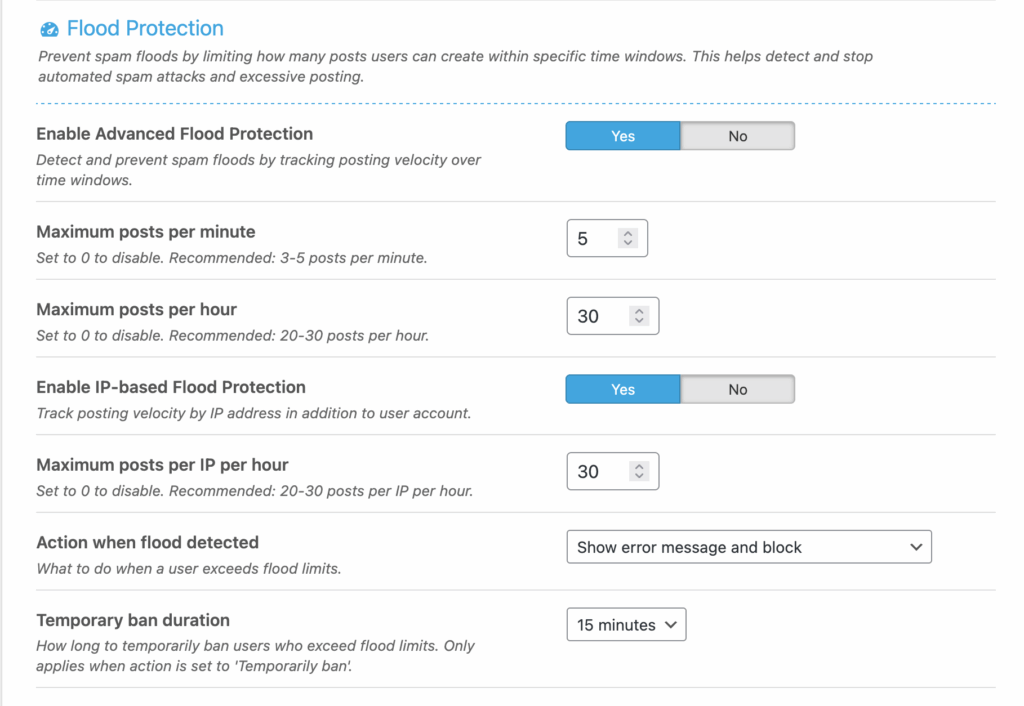
The Flood Protection feature in wpForo helps prevent spam floods by limiting how many posts users can create within specific time windows. This detects and stops automated spam attacks and excessive posting.
How It Works
- Per-User Tracking: Counts posts by logged-in user ID within rolling time windows
- Per-IP Tracking (optional): Additionally counts posts by IP address to catch multi-account abuse
- Two Time Windows: Short (1 minute) catches rapid-fire spam, long (1 hour) catches sustained attacks
- Configurable Response: Choose between soft (unapprove), medium (block), or hard (temp ban) actions
Settings
1. Enable Advanced Flood Protection
- Type: Yes/No
- Default: Yes
- Description: Master switch to enable/disable flood detection. When enabled, wpForo tracks posting velocity over time windows to detect spam floods.
2. Posts per minute
- Type: Number
- Default: 5
- Description: Maximum number of posts a user can create within 1 minute. If exceeded, the configured action is triggered. Set to 0 to disable this limit.
3. Posts per hour
- Type: Number
- Default: 30
- Description: Maximum number of posts a user can create within 1 hour. Catches sustained spam that stays under the per-minute limit. Set to 0 to disable.
4. Enable IP-based Flood Protection
- Type: Yes/No
- Default: No
- Description: When enabled, tracks posting velocity by IP address in addition to user account. Useful for catching spammers using multiple accounts from the same IP.
5. Posts per IP per hour
- Type: Number
- Default: 30
- Description: Maximum posts allowed from a single IP address per hour (across all users). Only applies when IP-based protection is enabled.
6. Action when flood detected
- Type: Select
- Default: Block
- Options:
- Unapprove – Show error message and unapprove the post (saved but held for moderation)
- Block – Show error message and block (post rejected entirely)
- Temporarily ban – User is banned for the configured duration
7. Temporary ban duration
- Type: Select
- Default: 15 minutes
- Options: 1 minute, 15 minutes, 30 minutes, 1 hour, 1 day
- Description: How long to ban users who exceed limits. Only applies when action is set to “Temporarily ban”.
Recommended Settings
Light Protection (low-traffic forums):
- Posts per minute: 10
- Posts per hour: 50
- IP protection: Disabled
Standard Protection (most forums):
- Posts per minute: 5
- Posts per hour: 30
- IP protection: Disabled
- Action: Block
Aggressive Protection (high-spam targets):
- Posts per minute: 3
- Posts per hour: 20
- IP protection: Enabled
- Posts per IP/hour: 20
- Action: Temporarily ban (15-30 min)